Converting Case in VS Code: Shortcuts and Extensions
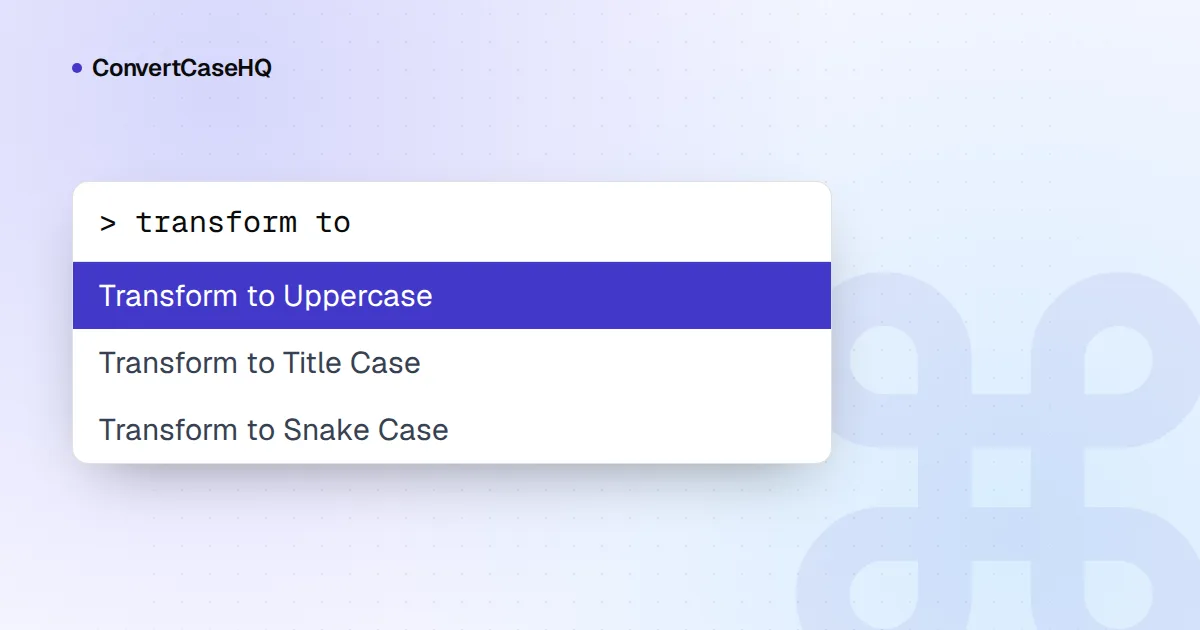
VS Code has seven built-in commands for converting case: Transform to Uppercase, Lowercase, Title Case, Snake Case, Camel Case, Kebab Case and Pascal Case. Select some text, open the Command Palette with Ctrl+Shift+P (Cmd+Shift+P on a Mac), type "transform" and pick one. None of them has a default keyboard shortcut, so if you use them often, bind your own in keybindings.json. Everything you need for that is below.
The commands have a few quirks worth knowing before you run them on a whole file, so we'll cover what each one actually does, then shortcuts, then the two tricks that fill the gaps: regex replace and snippet transforms. Extensions come last, because you may not need one.
The built-in VS Code case commands
The list has grown over the years. If a command is missing from your palette, check your version under Help, About (Code, About on a Mac).
| Command Palette name | Command ID | Since |
|---|---|---|
| Transform to Uppercase | editor.action.transformToUppercase | Long-standing |
| Transform to Lowercase | editor.action.transformToLowercase | Long-standing |
| Transform to Title Case | editor.action.transformToTitlecase | 1.34 |
| Transform to Snake Case | editor.action.transformToSnakecase | 1.53 |
| Transform to Kebab Case | editor.action.transformToKebabcase | 1.69 |
| Transform to Camel Case | editor.action.transformToCamelcase | 1.75 |
| Transform to Pascal Case | editor.action.transformToPascalcase | 1.88 |
Look closely at the IDs: it's transformToSnakecase with a lowercase c, not transformToSnakeCase. Copy them exactly when you write keybindings, or the shortcut will silently do nothing.
Two behaviors make these commands nicer than they first appear. With nothing selected, a command converts the word under the cursor, so you can click into userId and run Snake Case without selecting anything. And with several cursors or selections, each one is converted separately.
What each command really does
The commands split words differently from one another, which is easy to miss. Here's what they produce in current releases (we checked against VS Code's source):
| Input | Snake | Kebab | Camel | Pascal | Title |
|---|---|---|---|---|---|
hello world | hello world | hello world | helloWorld | HelloWorld | Hello World |
userID | user_id | user-id | userID | UserID | Userid |
USER_ID | user_id | user-id | USERID | UserId | User_Id |
XMLHttpRequest | xml_http_request | xml-http-request | XMLHttpRequest | XMLHttpRequest | Xmlhttprequest |
The patterns behind that table:
- Snake Case and Kebab Case split only where the case changes. They handle acronyms well, but spaces stay spaces, so
hello worldis merely lowercased. Kebab Case also turns underscores into hyphens; Snake Case leaves hyphens alone. - Camel Case and Pascal Case split on spaces, underscores and hyphens and capitalize each piece, but Camel Case doesn't lowercase the rest of a word. That's why
USER_IDcomes out asUSERID. Pascal Case does normalize all-caps words, givingUserId. (Not sure which of the two your code wants? See our camelCase vs. PascalCase guide.) - Title Case capitalizes every word, small ones included, and lowercases everything else:
the lord of the ringsbecomesThe Lord Of The Rings. It's built for quick fixes, not headlines. Apostrophes are handled sensibly:don'tbecomesDon't.
So to turn a phrase like Shipping Address Line 2 into snake_case, run Camel Case first and Snake Case second, which gives shipping_address_line2. Or paste it into our case converter, which splits on spaces, punctuation and case changes in one step and also offers CONSTANT_CASE, which VS Code doesn't have.
Adding keyboard shortcuts in keybindings.json
For one or two shortcuts, the Keyboard Shortcuts editor is enough: press Ctrl+K then Ctrl+S (Cmd+K Cmd+S on a Mac), search for "transform", double-click a command and press the keys you want. For the whole set, it's quicker to edit the file. Run Preferences: Open Keyboard Shortcuts (JSON) from the Command Palette and add these entries inside the square brackets:
{ "key": "ctrl+k shift+u", "command": "editor.action.transformToUppercase",  "when": "editorTextFocus" },
{ "key": "ctrl+k shift+l", "command": "editor.action.transformToLowercase",  "when": "editorTextFocus" },
{ "key": "ctrl+k shift+t", "command": "editor.action.transformToTitlecase",  "when": "editorTextFocus" },
{ "key": "ctrl+k shift+s", "command": "editor.action.transformToSnakecase",  "when": "editorTextFocus" },
{ "key": "ctrl+k shift+c", "command": "editor.action.transformToCamelcase",  "when": "editorTextFocus" },
{ "key": "ctrl+k shift+p", "command": "editor.action.transformToPascalcase", "when": "editorTextFocus" },
{ "key": "ctrl+k shift+k", "command": "editor.action.transformToKebabcase",  "when": "editorTextFocus" }
These are chords: press Ctrl+K, let go, then press Shift+U. We picked the Ctrl+K prefix because VS Code already uses it for editor commands, and none of these seven chords is taken by a default binding in current versions. On a Mac, write cmd+k instead of ctrl+k. Don't keep ctrl+k there: on macOS it's bound to Delete All Right, and a chord starting with it would get in the way. If a shortcut ever stops working, an extension has probably claimed the same keys; search for them in the Keyboard Shortcuts editor to find out which.
Regex replace with case changes
For changes across a file or a whole project, use Find and Replace with regular expressions. Open Replace with Ctrl+H (Cmd+Option+F on a Mac), turn on regex with Alt+R (Cmd+Option+R), and use \u, \U, \l or \L in front of a group. Finding _([a-z]) and replacing with \U$1 turns user_id into userId. The same works in Replace in Files (Ctrl+Shift+H, or Cmd+Shift+H).
One difference from sed and Perl trips people up: in VS Code each escape applies only to the next group, so \U$1_$2 uppercases $1 and leaves $2 alone, and there's no \E. Our regex case conversion cheatsheet has tested recipes and a comparison with other tools.
Snippet transforms: a snake_case that handles spaces
Snippets can transform text too, and since VS Code 1.108 their format options include /snakecase and /kebabcase alongside the older /upcase, /downcase, /capitalize, /camelcase and /pascalcase. Their snake_case uses different rules from the command: it turns spaces and hyphens into underscores. Bind it to a key with editor.action.insertSnippet, and it replaces the selection:
{
  "key": "ctrl+k shift+n",
  "command": "editor.action.insertSnippet",
  "when": "editorTextFocus && editorHasSelection",
  "args": { "snippet": "${TM_SELECTED_TEXT/(.*)/${1:/snakecase}/}" }
}
Select Shipping Address Line 2, press the keys, and you get shipping_address_line_2. The trade-off is acronyms: this version turns XMLHttpRequest into xmlhttp_request, where the built-in command gets it right. It also only converts the first line of a multi-line selection, because . doesn't match line breaks. Swap in /kebabcase for a kebab version.
Extensions for everything else
The built-ins don't cover CONSTANT_CASE, dot.case, path/case or swapping case. Two popular extensions do:
- change-case (publisher wmaurer) wraps the change-case JavaScript library. It adds commands for camel, constant, dot, kebab, lower, lowerFirst, no, param, pascal, path, sentence, snake, swap, title, upper and upperFirst, plus a Change Case Commands picker that previews each result when a single word is selected.
- Text Power Tools (by Dániel Tar) is a broader toolbox of more than 240 text commands. Case conversion is one part, covering camelCase, PascalCase, snake_case, CONSTANT_CASE, dash-case, dot.case and Title Case, next to line filtering, sorting and number sequences.
Our view: if you only need the seven built-in styles, skip the extension and bind the keys. If CONSTANT_CASE comes up every day, install change-case, because one command beats Snake Case followed by Uppercase.
A quick setup checklist: confirm you're on 1.88 or later so all seven commands exist, paste the seven keybindings (with cmd+k on a Mac), add the snippet binding if you convert phrases often, and reach for a proper title-case tool when you're writing headlines.