Converting Text Case in Excel, Google Sheets, and Word
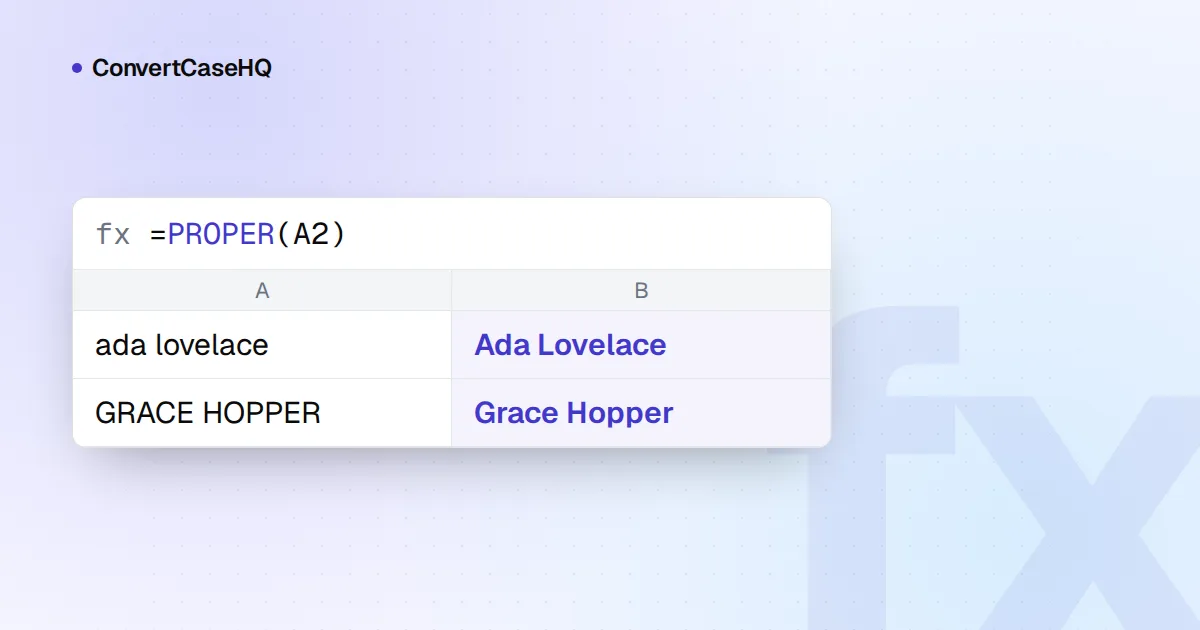
In Excel and Google Sheets, you convert text case with three functions: =UPPER(A2), =LOWER(A2) and =PROPER(A2), entered in a helper column and then pasted back as values. In Microsoft Word, select the text and press Shift+F3 to cycle through lowercase, UPPERCASE and Capitalize Each Word, or use the Change Case button on the Home tab for Sentence case and tOGGLE cASE as well.
That covers most jobs. The rest of this guide is about the cases that go wrong, starting with PROPER, which does something odd to apostrophes, and the better options when the same cleanup has to happen every week.
UPPER, LOWER and PROPER in Excel and Google Sheets
The three functions work the same way in both programs. Each takes one piece of text and returns a converted copy; none of them changes the original cell. The usual workflow:
- Insert an empty column next to your data.
- In the first row, enter
=PROPER(A2)(orUPPER, orLOWER) and fill it down. - Copy the new column and paste it over the original with Paste Special, Values, so you keep the text and lose the formulas.
- Delete the helper column.
In Excel for Microsoft 365, you can skip the filling: =PROPER(A2:A500) spills its results down the column. In Google Sheets, wrap the range in ARRAYFORMULA: =ARRAYFORMULA(PROPER(A2:A)).
Neither program has a sentence-case function. This formula capitalizes the first letter of the cell and lowercases everything else:
=UPPER(LEFT(A2,1)) & LOWER(MID(A2,2,LEN(A2)))It treats the whole cell as one sentence, which suits product names and short labels. For paragraphs, it lowercases the start of every sentence after the first.
PROPER's quirks: O'Neil, Don'T and 3Rd
Microsoft's own description explains everything PROPER does: it "capitalizes the first letter in a text string and any other letters in text that follow any character other than a letter", and lowercases the rest (see Microsoft's PROPER function page). Apostrophes, digits and hyphens are all "characters other than a letter", so:
| Input | PROPER gives | Why |
|---|---|---|
o'neil | O'Neil | Letter after an apostrophe, which happens to be right here |
don't stop | Don'T Stop | The same rule, wrong this time |
3rd street | 3Rd Street | Letter after a digit (Microsoft's example: 76BudGet becomes 76Budget) |
2-way street | 2-Way Street | Letter after a hyphen |
mcdonald | Mcdonald | No special rules for Mc or Mac |
IBM SALES | Ibm Sales | Everything after the first letter is lowercased |
lord of the rings | Lord Of The Rings | Every word, small ones included |
Google Sheets' PROPER has the same apostrophe habit, turning "don't" into "Don'T", and Google's help page warns that it turns "mcLeod" into "Mcleod".
Fixing the apostrophe problem
The commonest casualties are possessives and contractions ending in 's and 't. This formula repairs them while leaving O'Neil and O'Sullivan alone:
=TRIM(SUBSTITUTE(SUBSTITUTE(PROPER(A2&" "), "'S ", "'s "), "'T ", "'t "))The trick is the extra space added to the end of the text. It lets "'S " match a possessive at the very end of the cell too, and TRIM removes the space again. "don't stop ada's car" becomes "Don't Stop Ada's Car". Add more pairs for 're, 'll, 've, 'd and 'm if your data has them, and repeat them with the curly apostrophe (’) if the text came from Word or the web.
No formula fixes McDonald or IBM, because the information isn't in the text. For a column of names, run PROPER, then sort or filter for "Mc", "Mac" and known acronyms and fix those by hand.
Clean the text before you convert it
Case conversion goes better on clean input. Excel's TRIM removes spaces from the ends and reduces runs of spaces between words to one, but Microsoft notes it only handles the ordinary space character, not the non-breaking space that text copied from web pages often contains. Replace those first:
=PROPER(TRIM(SUBSTITUTE(A2, UNICHAR(160), " ")))Our guide to text data normalization goes further, into invisible characters, accents and deduplication.
Flash Fill: convert by example
In desktop Excel (2013 and later), Flash Fill can learn a case change from an example. Next to ALICE SMITH, type Alice Smith, move to the cell below and press Ctrl+E (or choose Data, Flash Fill). Excel fills the rest of the column following the same pattern.
Two things to know. Flash Fill writes plain values, not formulas, so the results won't update if the source changes. And it's guessing the pattern from your examples, so scan the results, especially rows that look different from the first one. If it guesses wrong, type one more example and press Ctrl+E again.
Power Query for cleanups you repeat
If the same export lands in your inbox every week, do the conversion in Power Query so it's repeated on every refresh. Select your data, choose Data, From Table/Range, then select a column in the Power Query Editor and pick Transform, Format, and one of lowercase, UPPERCASE or Capitalize Each Word. The same commands under Add Column, Format put the result in a new column and keep the original.
Behind the menu are the M functions Text.Lower, Text.Upper and Text.Proper. Microsoft's documentation shows them applied with Table.TransformColumns:
= Table.TransformColumns(Source, {"CUSTOMER", Text.Proper})Two Power Query details catch Excel users. Its Format, Trim command removes whitespace from the ends of the text only; unlike the worksheet TRIM, it doesn't touch double spaces in the middle. And M is case-sensitive, so "Redmond" and "REDMOND" are different values in a merge or a group-by unless you convert them first or compare with Comparer.OrdinalIgnoreCase.
Microsoft Word: Shift+F3 and Change Case
Word changes the actual letters, with no helper column needed. Select the text and press Shift+F3 (Fn+Shift+F3 on many Mac keyboards) to cycle through lowercase, UPPERCASE and Capitalize Each Word. The Change Case button on the Home tab (it shows "Aa") offers five options: Sentence case., lowercase, UPPERCASE, Capitalize Each Word and tOGGLE cASE. The last one is handy when you've typed a paragraph with Caps Lock on.
Don't confuse that with Ctrl+Shift+A, which applies the All Caps font effect. Text formatted that way looks uppercase, but the letters underneath don't change, so it comes back in its original case when you paste it somewhere as plain text. If the capitals need to survive a trip into a web form or anything else that takes plain text, use Change Case. Ctrl+Shift+K is the equivalent effect for small caps.
Google Docs has the same idea under Format, Text, Capitalization, with lowercase, UPPERCASE and Title Case.
Which method to use
- A one-off column: a PROPER, UPPER or LOWER helper column, pasted back as values. Flash Fill if you'd rather show than type a formula.
- The same import every week: Power Query.
- Running text in a document: Word's Change Case or Shift+F3.
- Titles that need real title case: PROPER capitalizes "of" and "the". Paste the column into our case converter instead: its Title Case keeps small words lowercase and works line by line, so rows stay rows. (It doesn't know names either: "o'neil" becomes "O'neil".) Not sure which style your titles need? Our title case vs. sentence case guide compares them.